Tag Archives: Vulnerability

Making GARAK’s LLM Security Reports Actually Useful

Lately, I’ve been running security assessments on various LLM applications using NVIDIA’s GARAK tool. If you haven’t come across it yet, GARAK is a powerful open-source scanner that checks LLMs for all kinds of vulnerabilities, everything from prompt injection to jailbreaks and data leakage.

The tool itself is fantastic, but there was one thing driving me crazy: the reports.

The Problem with JSONL Reports

GARAK outputs all its test results as JSONL files (JSON Lines), which are basically long text files with one JSON object per line. Great for machines, terrible for humans trying to make sense of test results.

I’d end up with these massive files full of valuable security data, but:

  • Couldn’t easily filter by vulnerability type
  • Had no way to sort or prioritize issues
  • Couldn’t quickly see patterns or success rates
  • Struggled to share the results with non-technical team members

Anyone who’s tried opening a raw JSONL file and making sense of it knows the pain I’m talking about.

The Solution: JSONL to Excel Converter

After wrestling with this problem, I finally decided to build a solution. I created a simple Python script that takes GARAK’s JSONL reports and transforms them into nicely organized Excel workbooks.

The tool

  1. Takes any JSONL file (not just GARAK reports) and converts it to Excel
  2. Creates multiple sheets for different views of the data
  3. Adds proper formatting, column sizing, and filters
  4. Generates summary sheets showing test distributions and success rates
  5. Makes it easy to identify and prioritize security issues

Here’s what the output looks like for a typical GARAK report:

  • Summary sheet: Shows key fields like vulnerability type, status, and probe class
  • All Data sheet: Contains every single field from the original report
  • Status Analysis: Breaks down success/failure rates across all tests
  • Probe Success Rates: Shows which vulnerability types were most successful

Why This Matters

If you’re doing any kind of LLM security testing, quickly making sense of your test results is key. This simple conversion tool has saved me hours and helped me focus on real vulnerabilities instead of wrangling with report formatting.

The best part is, the code is super simple; just a few lines of Python using pandas and xlsxwriter. I’ve put it up on GitHub for anyone to use.

Wrapping Up

Sometimes the simplest tools make the biggest difference. I built this converter to scratch my own itch, and it’s been surprisingly effective at saving time and effort.

If you’re doing LLM security testing with GARAK, I hope it helps make your workflow smoother too.

GARAK – JSONL to Excel Converter

Also, check out my second tool: GARAK Live Log Monitor with Highlights. It’s a bash script that lets you watch GARAK logs in real-time, automatically highlights key events, and saves a colorized log for later review or sharing.

Would love to hear your feedback!
Tagged , , , , , , , , , , , ,

nessus installation guide linux

Unfortunately, after my last CDR post  – for some unrelated reason, I had my main lab system crash and now I have to rebuild most of the different lab machines that I had before. Obviously, this is a little frustrating because I had everything set up the way I wanted it and now I have to pretty much start from scratch. But to make this rebuilding process more pleasant and productive, I think I am going to document and share some of the labs that I am going to build. Most of these are going to be pretty simple to set up without much difficulty using VMware Workstation. I am not going to go over setting up VMware Workstation since there are already a ton of YouTube videos on it.

First, we are going to select the platform that we are going to use for most of these machines – our choice: Ubuntu 13 Desktop.

The first tool that we are going to install is the Nessus vulnerability scanner. In the first CDR project, we used Nessus as one of our reconnaissances tools along with Nmap. However, this tool can be used in just your lab or home network for identifying vulnerabilities in your systems.

We are going to be installing the latest version of Nessus v6 Home – as of this post. For the operating system, we will choose Ubuntu 11.10, 12.04, 12.10, 13.04, 13.10, and 14.04 AMD64 and download the .deb package.

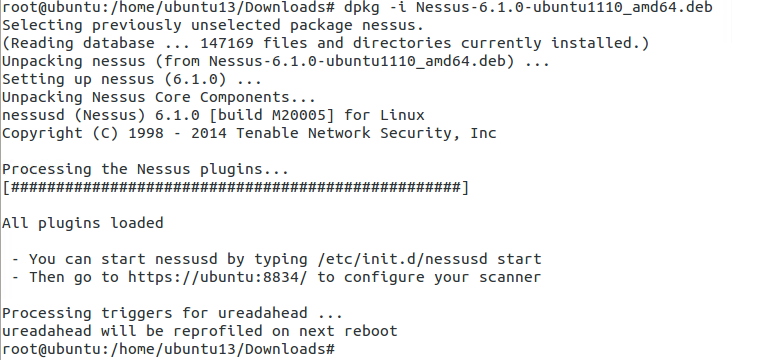
Here are the sequence of commands after you have downloaded the package and opened the appropriate download directory in the terminal.

Nessus_installationWe are pretty much done. The only thing you need to check is if the Nessus service is running. Usually, it starts automatically but you can verify by running: service nessusd status. If the output shows stopped then simply run the following to start it: service nessusd start.

After above, open your browser and type your IP and port 8834. You can find your IP address by running ifconfig in your terminal. My IP address on this machine is 192.168.244.178.

LocalIP

You should get a similar page as above. Follow through the prompt and in a couple of screens you will have the option to create an initial account for your Nessus scanner. After that, you will need to provide Plugin Feed Registration. For home use, you can request the activation code by completing the following: http://www.tenable.com/products/nessus-home

After completing all the steps thus far – you are done with installing your Nessus scanner. Now you need to configure your scans. Following are the basic steps to configure a scan:

New Scan > Basic Network Scan > [Complete General Page with the Name of the Scan and the target IPs]. On the left side, you have additional scan options that you can play around with. After you are done with making your selections, simply hit save and your scan will automatically start. The scan duration depends on the number of IPs that you are scanning and if they are credentialed or non-credentialed.

After your scan completes you will be able to see the scan results and drill down on each host to see the details on the findings.  Later you can also run just reports against previously completed scans.

This is pretty much all you need to do for the basic setup. Feel free to run more scans and try to run a credentialed scan as they will provide the most comprehensive vulnerability information and its also least intrusive on your target systems.

Until next time!

Tagged , , ,
Advertisements