Petya Response Summary

Wanted to share a quick response plan for the recent Petya ransomware breakout:

  • Apply Microsoft security updates released in March 2017 bulletin: MS17-010
  • Most Firewall and IDS/IPS vendors have released signatures for the SMB vulnerability exploit, however, if you do not have auto-updates enabled you to want to do a manual update
  • Disable the support of SMBv1 protocol. A detailed write-up here: https://blogs.technet.microsoft.com/josebda/2015/04/21/the-deprecation-of-smb1-you-should-be-planning-to-get-rid-of-this-old-smb-dialect/
  • Some variants of Petya have been reported to use WMIC & Microsoft PSExec to laterally move within the environment.
    • Petya scans the local /24 to discover enumerate ADMIN$ shares on other systems, then copies itself to those hosts and executes the malware using PSEXEC. This is only possible if the infected user has the rights to write files and execute them on the system hosting the share.
    • Petya uses the Windows Management Instrumentation Command-line (WMIC) tool to connect to hosts on the local subnet and attempts to execute itself remotely on those hosts. It can use Mimikatz to extract credentials from the infected system and use them to execute itself on the targeted host.
    • Blocking ADMIN$ share via GPO should address lateral movement concerns
  • If you cannot block, monitor ingress/egress traffic on 455/137/138/139
  • If you use tax accounting software, MEDoc read this: http://www.bbc.co.uk/news/technology-40428967

Most of the recent ransomware campaigns are taking advantage of vulnerabilities disclosed by the Shadow Brokers in April 2017. In addition to MS17-010 (EternalBlue), all of the related vulnerabilities should be patched as soon as possible:

  • Code Name: Solution
    • “EternalBlue” : Addressed by MS17-010
    • “EmeraldThread” : Addressed by MS10-061
    • “EternalChampion” : Addressed by CVE-2017-0146 & CVE-2017-0147
    • “ErraticGopher” : Addressed prior to the release of Windows Vista 
    • “EsikmoRoll” : Addressed by MS14-068 
    • “EternalRomance” : Addressed by MS17-010 
    • “EducatedScholar” : Addressed by MS09-050 
    • “EternalSynergy” : Addressed by MS17-010 
    • “EclipsedWing” : Addressed by MS08-067

Petya campaign is still developing and it is important to monitor the developments. One of the best ways to monitor the situation is via Twitter under the following hashtags: #Petya #NotPetya #Ransomware

References:

Tagged , ,

Cellebrite BlackLight Forensics Review

BlackBag BlackLight

I had no idea just how tightly BlackLight would grab my attention and then keep its hold. Yet, here I am. While I’ve heard positive feedback from people in the information security community regarding BlackBag’s forensic software products, I have not had the opportunity to use one of their products on my own. Thus, I was thrilled to review BlackBag’s BlackLight product.

For those who are not familiar, Cellebrite BlackBag’s BlackLight is a piece of comprehensive forensics analysis software that supports all major platforms, including Windows, Android, iPhone, iPad, and Mac. In addition to analysis, it can logically acquire Android and iPhone/iPad devices. You can also run the software on both Windows and Mac OS X.

In this particular review, I used the latest version of BlackLight (2016 release 3). I decided to use it on Mac. The main reason I chose Mac was that most of the analysis that I have performed thus far has been with the traditional Windows Forensic Recovery of Evidence Device (FRED) and I figured this would be a great opportunity to try something different.

Installing BlackLight on Mac was a breeze. I simply downloaded the installation file from BlackBag’s website and entered the license key upon initial file execution. The single installation file took care of all of the dependencies needed for the software, which I was glad to see.

blackbag blacklight

BlackLight Actionable Intel

Here were the configurations for my Mac: MacBook Pro running Sierra OS version 10.12.2. The hardware included Intel Core i7 with 2.5 GHz with 16GB memory and a standard hard disk drive.

With the review, I wanted to make a use-case in which I would perform basic processing and analysis of a traditional disk image using BlackLight running on Mac. Without any real experience with BlackLight, I focused on usability and intuitiveness.

Processing

For this review, I used a 15GB physical image of Windows XP SP3 E01 Disk. I processed this image through BlackLight with all of the ingestion options available in the software and to my surprise, it took under 10 minutes to complete.

What was even more impressive was that it had a very little performance impact on my system. In fact, as the image was being processed in the background, I continued to perform normal operations such as browsing the web and using Open Office software with no problem. Continue reading at forensicfocus.com by clicking here!

Tagged , ,

FTK Forensics Bootcamp Review

For a few years, I had been using Access Data’s FTK (Forensic Toolkit) software without any formal training. I had managed to work my way through the fundamentals on my own, but I always sensed that there was much on which I was missing out.

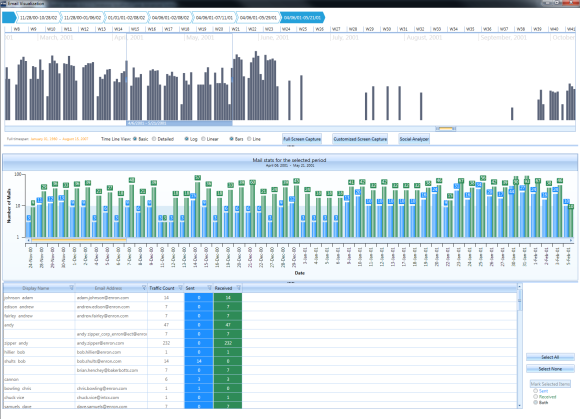
emailvisualization

FTK  Email Analysis Visualization

It was only after I recently attended the Advance FTK class offered by AccessData (Syntricate) that I realized the enormity of what had been right under my nose the whole time.

You can read my complete review of this course at Forensic Focus or by clicking here.

Tagged , , ,

Burp Suite installation and features

The other day I came across a social media post that was about utilizing Burp Suite to identify vulnerabilities in web applications. I had heard of Burp before but never really had the chance to play around with it – until now.

Just like a lot of other security tools, Burp has a community version along with its commercial product. I decided to download the free edition from here in my home lab.  The installation process is straightforward and in no time you have Burp up and running. Here is how the initial interface looks like:

Burp

Right when I finished my installation of  Burp, I realized that I did not have a web application running in my lab that I could use to test Burp against. Bummer! Now I had to decide between setting up a web server myself or finding a commercial distribution that came pre-built with one. This was a no-brainer – and within minutes I found a few distributions that were designed for testing and learning web application security; such as SamuraiWTF, WebGoat and Kali Web Application Metapackages. I decided to go with SamuraiWTF.

SamuraiWTF gives you the option to run from a live disk or install it in a VM. I decided to install the VM. Here is a good guide to the installation process. I give my VM instance 4GB RAM and 3 cores; more than enough horsepower.

This distribution comes pre-installed with Mutillidae, which is a “free, open source, deliberately vulnerable web-application providing a target for web-security enthusiasts”. This was perfect for what I was looking for. Setting up the Mutillidae in pretty simple – all I had to do was change my network configurations to NAT and that was it. However, if you need more information on configuration here are some great video guides on Mutillidae; in fact, I used some of these myself while configuring Burp to work with Mutilliade.

After finishing all of the above prep work, I was ready to run Burp!

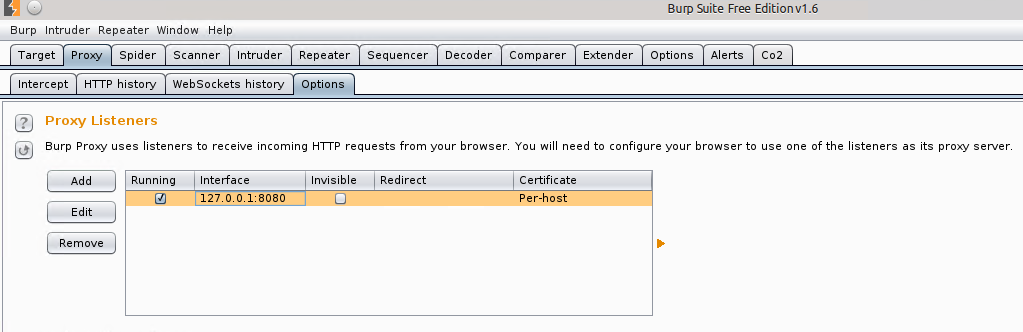
For those who are not familiar with Burp, it’s an interception proxy which sits between your browser and the web server and by doing so it is able to intercept requests/responses and provides you the ability to manipulate the content. To do so you have to configure Burp as your proxy. On your VM, this would be your localhost (Proxy Tab > Options):

Proxy

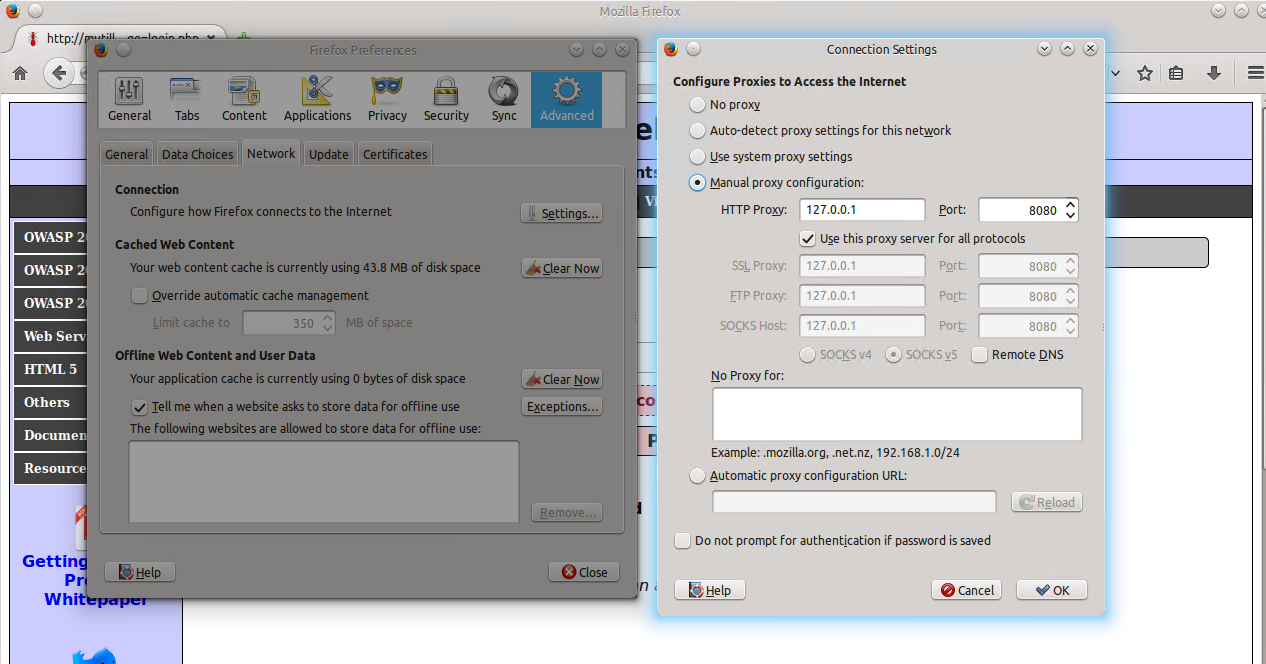
Likewise, you would have to configure your browser to that same proxy. Here is my proxy configuration on Firefox:

Firefox Proxy Configuration

Now as you navigate through your Mutilliadae webpage, all your requests should go through Burp. One thing you have to do is turn on the Intercept option in Burp. It’s under Proxy > Intercept.

What this allows you to do is see the request as its made but gives you the control to either forward it to the web server or simply drop the request (like a typical MiTM). For example, on the login page of Mutilliade i used admin name and admin123 password. And as soon as I hit “Login” I saw the request being made from my browser to the web server in Burp:

Burp Intercept

In the screenshot above, you can see the two options: Forward and Drop. If you hit forward, the web server will receive this request from your browser and will respond as it would normally. In this case, the account I used to log in did not exist:

Web Server Respose

Burp has the capability to also capture the responses. It is an option that you can turn on by going to Proxy > Options and towards the middle of the page you will see “Intercept Server Responses”. By turning this on you will be able to see and control both sides of the requests:

Request and Response

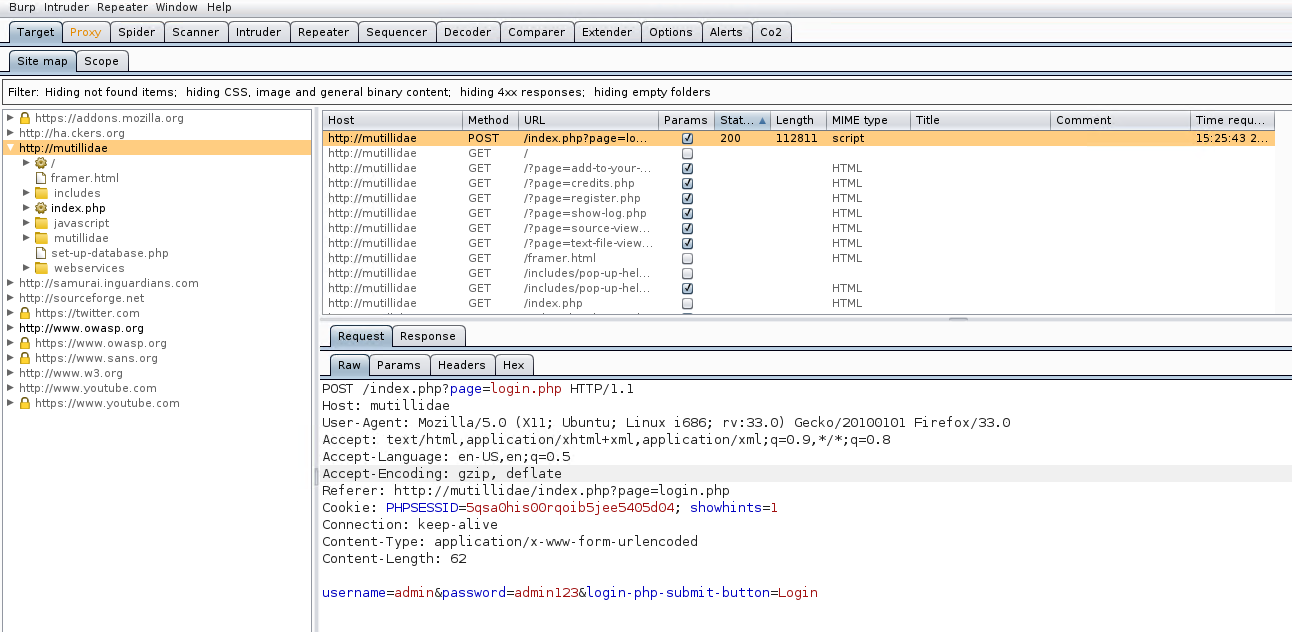
If you look at Target > Site Map; on the left pane you will see a list of all the sites that you have visited with the Burp proxy on:

History Map

One advantage of the above feature is that it allows you to go back and revisit requests and responses. The sites that are in grey color are those that are available on the target web page but you have not visited them.

Another neat feature is that if you do not want to visit each page individually you can run the “Spider” feature which will map the whole target page for you.

Spider

If you go under Spider > Control you are able to see the status of the Spider as it runs:

Spider Status

When you intercept request or response, you have the ability to send that to other features of Burp. You are able to view these additional options by right-clicking on the intercept:

Intercept Additional Options

Towards the bottom of the official Burp Suite guide page here you can see a brief description of most of the options shown in the screenshot above. The one I found really neat is the “Repeater” option which allows you to modify and re-transmit requests repeatedly without having the need to perform new intercepts each time.

This concludes my brief journey of getting started with Burp using SamuraiWTF. There is a whole lot more than I had the chance to explore but here is a great reference for advanced topics.

Below  is a quick blurb on some of Burps features:

Spider: crawls the target and saves the numerous web pages that are on the target.

Intruder: automated attack feature which tries to automagically determine which parameters can be targeted i.e. fuzzing.

Fuzzing options: Sniper (fuzz each position one-by-one), Battering Ram (all positions on the target receive one payload), Pitchfork (each target position is fuzzed in parallel) Cluster Bomb (repeats through payloads for multiple positions at once).

Proxy: used to capture requests & responses to either just monitor or manipulate and replay.

Scope: controls what (pages, sites) is in/out of the test “scope”.

Repeater: manually resubmit requests/responses; allows modification.

Sequencer: used to detect predictability of session tokens using various built-in tests i.e. FIPS 140-2.

Decoder: allows encoding/decoding of the target data i.e. BASE64, Hex, Gzip, ASCII, etc.

Comparer: allows side-by-side analysis between two requests/responses.

Cheers!

Tagged , , ,
Advertisements