Category Archives: Info Security

How to Install and Configure Ollama on Kali Linux

Install Ollama on Kali Linux

In the fast-growing world of artificial intelligence (AI), Ollama is becoming a popular tool for people who want to run powerful AI language models on their own computers. Instead of relying on cloud servers, Ollama lets you run AI models locally, meaning you have more privacy and control over your data. This guide will show you how to install and set up Ollama on Kali Linux so you can experiment with AI models right from your device.

What Is Ollama?

Ollama is a software framework that makes it easy to download, run, and manage large language models (LLMs) like LLaMA and other similar models on your computer. Itโ€™s designed for privacy and efficiency, so your data doesnโ€™t leave your device. Ollama is getting more popular with developers and researchers who need to test AI models in a secure, private environment without sending data over the internet.

Why Use Ollama?

Ollama is gaining popularity for several reasons:

  • Privacy: Running models locally means your data stays on your device, which is crucial for people handling sensitive information.
  • Performance: Ollama is optimized to run on CPUs, so you donโ€™t need a high-end graphics card (GPU) to use it.
  • Ease of Use: With simple commands, you can easily download and manage different AI models, making it accessible for beginners and advanced users alike.

Why Install Ollama on Kali Linux?

Kali Linux is a popular choice for cybersecurity professionals, ethical hackers, and digital forensics experts. Itโ€™s packed with tools for security testing, network analysis, and digital investigations. Adding Ollama to Kali Linux can be a big advantage for these users, letting them run advanced AI language models right on their own computer. This setup can help with tasks like analyzing threats, automating reports, and processing natural language data, such as logs and alerts.

By using Ollama on Kali Linux, professionals can:

  • Make Documentation Faster: AI models can help write reports, summaries, and other documents, saving time and improving consistency.
  • Automate Security Analysis: Combining Ollama with Kaliโ€™s security tools allows users to build scripts that look for trends, scan reports, and even identify potential threats.

Before You Begin Install

To get started with Ollama on Kali Linux, make sure you have:

  • Kali Linux version 2021.4 or later.
  • Enough RAM (at least 16GB is recommended for better performance).
  • sudo access on your system

Note: Ollama was initially built for macOS, so the setup on Linux may have some limitations. Be sure to check Ollamaโ€™s GitHub page for the latest updates.

Steps to Install Ollama on Kali Linux

Step 1: Update Your System

First, update your system to make sure all packages are up to date. Open a terminal and type:

sudo apt update && sudo apt upgrade -y

Install Ollama:

The official Ollama installation for Ubuntu or Debian-based systems is much simpler and usually involves running a curl command to download and execute an installation script:

curl -fsSL https://ollama.com/install.sh | sh
ollama_install_kali, Ollama AI Models

Verifying the Installation

ollama --version

Ollama Installation

You can also just enter ollama in the terminal and if its installed correctly you should see the following:

Run Language Models Locally

Installing and Running LLMs

The process for installing and running LLMs on Kali Linux is the same as on other Linux distributions:

To Install an LLM:

ollama pull <LLM_NAME>

Install LLMs on Linux

In my case above, I installed llama3.2:1b model. You can see full library of models available on Ollama’s Github.

Start Prompt

After you’ve completed the previous steps, you can start Ollama with the specific model that you installed and send your prompts:

ollama run <LLM_NAME>
start prompt ollama kali, AI for Cybersecurity Professionals

Conclusion

Ollama provides a great way to run large language models on your own machine, keeping data secure and private. With this guide, you can install and configure Ollama on Kali Linux and explore AI without relying on cloud-based services. Whether youโ€™re a developer, AI enthusiast, or just curious about AI models, Ollama lets you experiment with language models directly from your device.

Stay tuned to the Ollama GitHub page for the latest features and updates. Happy experimenting with Ollama on Kali Linux!

AI-Policy-Development-Guide

I recently published a comprehensive guide for organizations developing an AI policy. It includes ย key questions on AI governance, risk mitigation, compliance, and stakeholder engagement. You can find it on my Github: https://github.com/azeemnow/Artificial-intelligence/blob/main/AI-Policy-Development-Guide/AI-Policy-Development-Guide-v1.pdf

Disclosure: Some of the content in this blog post may have been generated or inspired by large language models (LLMs). Effort has been made to ensure accuracy and clarity.


Tagged , , , , , , , , , , , , ,

How to Quickly Analyze a PCAP File

 I am so excited to introduce NFPA – a Network Forensic Processing & Analysis tool! 

network_security_ediscovery_network_analysis_network_monitor_forensics_tools_pcap_forensics_packet_forensics_capture_wireshark
NFPA – Network Forensic Processing & Analysis

My purpose behind NFPA tool is to provide Cybersecurity analysts a more efficient and automated (โ€œclick & forgetโ€) means of executing commonly-used, open-source network forensics utilities and analysis queries against a piece of network evidence (PCAP).

NFPA tool helps optimize investigations by reducing errors that are typically involved in manually processing and analyzing network-based evidence through various popular tools and command-line options. 

Using NFPA, an analyst can:

  1. quickly process case evidence through various popular tools and utilities all by a simple script execution
  2. review results from 60+ individual, multi-purpose queries pre-ran again the evidence
  3. view the native output from all of the evidence process utilities – providing the opportunity for any validation or further analysis

All of the above is organized in an easy-to-understand structure which allows the analyst to quickly find answers as well as the authoritative source of those answers. 

Here is a quick demo of NFPA in action:

A key requirement when designing NFPA was to keep dependencies as minimum as possible. I wanted to make sure I leverage a platform that is already commonly used by analysts which is pre-configured with all of the necessary tools and capabilities. This would allow analysts to instantly begin their work on investigations and not have to deal with the underlying system engineering.

To that end, here is the only dependency:

Additionally, the NFPA is built-in Bash. Which means you do not have to import any specific libraries or run a certain version. Another advantage of using Bash is that you will most likely be able to run NFPA on other Linux distributions (may need to install some purpose-built network forensic tools separately).

The first version of the tool is now available on Github. Please check it out and let me know what you think!

Tagged , , , , , , , , , ,

What your CMD command line security is missing

Here is what your should do to increase your cmd command line security
Gap in Your Command-line Security

I want to write a follow-up on my last post about chain-of-commands not properly being captured by many defensive tools. During further research and testing, I observed that built-in Windows Command line actions are also not captured.

For instance, a simple act of deleting a file from the CMD Command-line is neither captured in SYSMON or in Windows Event logs:

 CMD.EXE > del /f test_file.txt
file_del_cmd

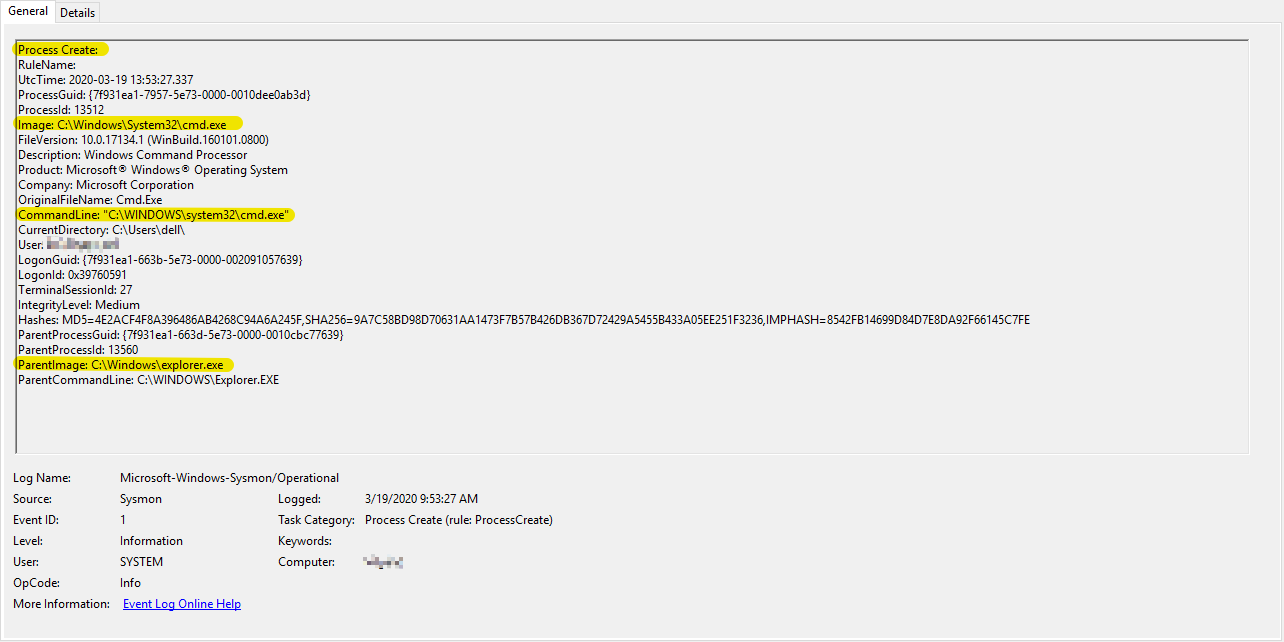
The only event observed in SYSMON for the above action was the following:

del_file

Additionally, nothing notable was observed in Windows Event logs.

This simple act of deleting a file is a common technique used by the adversaries. This action could be done both manually or through malware. One example where this technique is used is in the case of the Robbinhood Ransomware. In this sandbox report, you can see various quite-delete operations that Robbinhood malware executes.

I understand that there are other means of extracting CMD Command-line execution content. However, many of those require digital forensics analysis.

For instance, you can review Command-line history by analyzing the memory capture using a tool such as Volatility with plugins: cmdscan, consoles or just running strings against the memory image. However, this type of analysis requires either a memory image capture or a specialized commercial solution that can scan live memory content (example). Unfortunately, most organizations do not have access to these enterprise-solutions thus their ability to hunt for such Command-line techniques becomes limited.

MITRE ATT&CK Evaluations also has an entry for this technique 9.C.4 File Deletion where you can select various technologies from the drop-down list and see how they detect this technique.

If you are collecting and hunting full CMD Commandline, I would love to hear about your feedback; especially, if the technology/method that you are using is not one of the ones tested in ATT&CK Evaluations above.

https://attackevals.mitre.org/technique_comparison.html?round=APT29&step_tid=9.C.4_T1107&vendors=


Tagged , , , , , ,

Who Else is Blind to Chain-of-Commands | Adversary Technique

photo-1567635102602-73000b63761a

I recently came across a technique that potentially allows the adversary to both execute and evade detection that is simple to execute, however, to my surprise, not entirely captured by detection tools (at least not by those that I have tested).

In this quick post, I will share my findings & analysis and I am interested in any feedback around options for detection.

Technique Description:ย The adversary executes a custom-developed, chain-of-commands that they execute together as a single command-line using Windows CMD.EXE. This execution could be achieved through malware or the adversary could manually perform it on a system under their control.

One of the key advantages of this technique for the adversary is that, as of this writing, SYSMON (10.0.4.2), and maybe even some commercial EDR solutions, do not capture such chain-of-commands as a single execution. Instead, these tools typically log this activity separately. I found nothing in the SYSMON logs or Windows native event logs that indicate that multiple commands were executed together as part of a chain.

If what I have observed in true, then I think this lack of total context makes it difficult for incident responders, threat hunters, or security monitoring professionals to identify such activity as anomalous among a large number of events. On the other hand, it allows the adversary to hide in plain sight.

Technique Use in Real Malware: One particular malware where I found this technique being used was in the RobbinHood Ransomware. In my analysis of these two samples (1, 2), this chain-of-command technique can be observed in a couple different ways. However, in one specific instance, RobbinHood uses this technique to check for network connectivity, terminates its previously-launched malicious process and subsequently deletes that same process executable quietly from the system permanently. The command itself was as follows:

ping 1.1.1.1 -n 1 -w 3000 > โ€ฉ& taskkill /f /im steel.exe & Del /f /q โ€˜C:\Users\user\Desktop\steel.exeโ€™

Atomic Test: To simulate the above technique, I developed this benign chain-of-commands, which essentially, first checks network connectivity by making a single ICMP ping request to a Googleโ€™s public DNS address, and then it terminates a running Chrome web browser process.

ping 8.8.8.8 -n 1 -w 3000 > Nul & taskkill /f /im chrome.exe

chain_of_command_atomic_test

Here is what I observed in SYSMON on the atomic test above:

First, you see an entry for PING.EXE portion of the chain-of-command:

ping_sysmon

Second, you see separate entry for the latter portion of the chain where the CHROME.EXE process is terminated:

taskkill_sysmon

It is evident in the SYSMON events above that both processes share the same Parent Process ID. However, while both events share the same ParentProcessID of 12120, there isn’t any explicit indication that these commands were executed together as part of a chain-of-commands. Which I believe is an important context that is missing as it would not only stick-out during Incident Response/Hunt/Monitoring; especially if the system under investigation and has no business purpose to running such chain-of-commands.

I do want to highlight that I think SYSMON is capturing what it is supposed to capture – a process creation. It captured as each process was created on the system; which was separately one at a time. The limitation appears to be at the operating system level where this data is not captured.

I look forward to feedback and how are you detecting this technique in your environments!

Reference:

MalwareReference
Trojan; possibly Big Bang APT1. https://bit.ly/2xaAVNr
2. https://bit.ly/2KBddgp
3. https://bit.ly/3cUVkFH
Raccoon Stealerhttps://bit.ly/35i8dXP
InstallCube Trojanhttps://bit.ly/2yMjmDI
GreenKit Bitcoin Mining Rootkithttps://bit.ly/3aDRI9i
TROJ_VICEPASS.A1. https://bit.ly/2y2PrHr
2. https://bit.ly/2xem5Wm

Tagged , , ,
Advertisements